

THE PADHOW FIELD GUIDE FOR MAC
One shortcut.
A lot within reach.
A practical tour of what Padhow can do today. Pick a feature from the guide, see it in context, and follow the next step when you’re ready to try it.
Your Mac, in one place.
Open the launcher from another app, then search your Mac, work with selected text, dictate, or open a built-in tool. You choose which features and shortcuts to use.
Product reveal · press play to watch
Set up the essentials.
First run walks you through permissions, a launcher shortcut and your AI choice. Dictation needs a speech model download and Microphone access; selected-text actions and insertion need Accessibility.
Dictation setup detailsFIND & OPEN
Start with a few keys.
Call up Padhow with your chosen shortcut. Search results can take you to an app, a file, a writing action or a built-in tool. The input is ready as soon as the launcher opens.
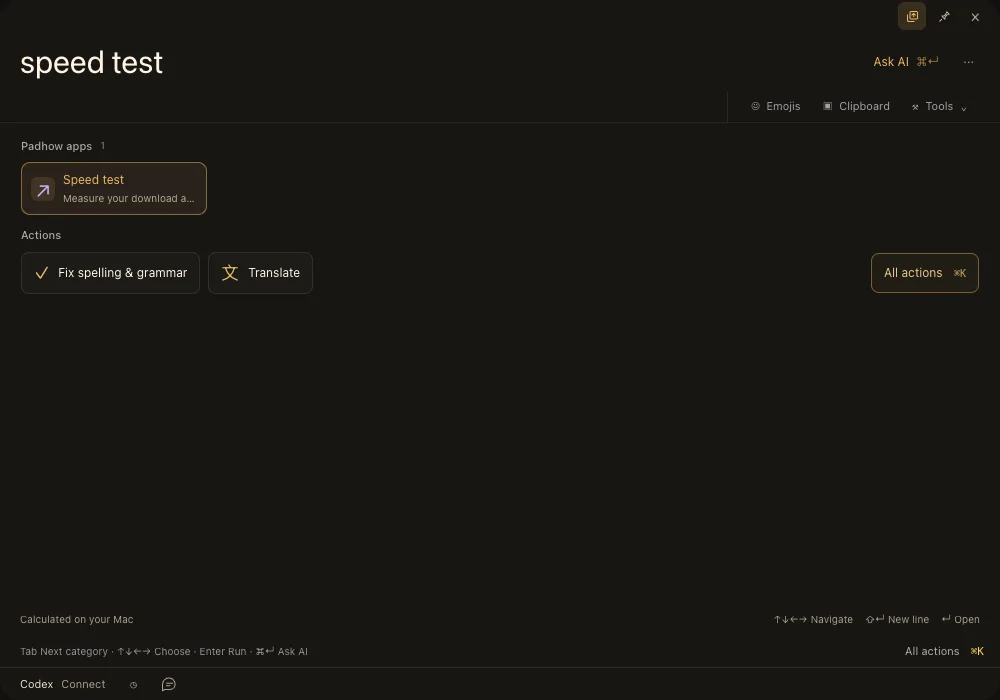
Try: speed test · clipboard · 10 km to miles
Find it without digging.
Search installed applications and files in the folders you choose. Preview a matching file before opening it; file search stays scoped to your configured locations.
Look it up, stay in flow.
Enter a site or search query and preview supported pages inside Padhow, or choose to open them in your browser. Web previews contact the sites you visit and store their cookies locally.
Try: g macOS keyboard shortcuts
SPEAK & WRITE
Speak into your work.
Hold your dictation shortcut, speak in English and release. After the initial model download, recognition runs on your Mac. A completed transcript is saved to Voice clipboard before Padhow attempts to insert it into the original editable field.
Setup, shortcuts & limits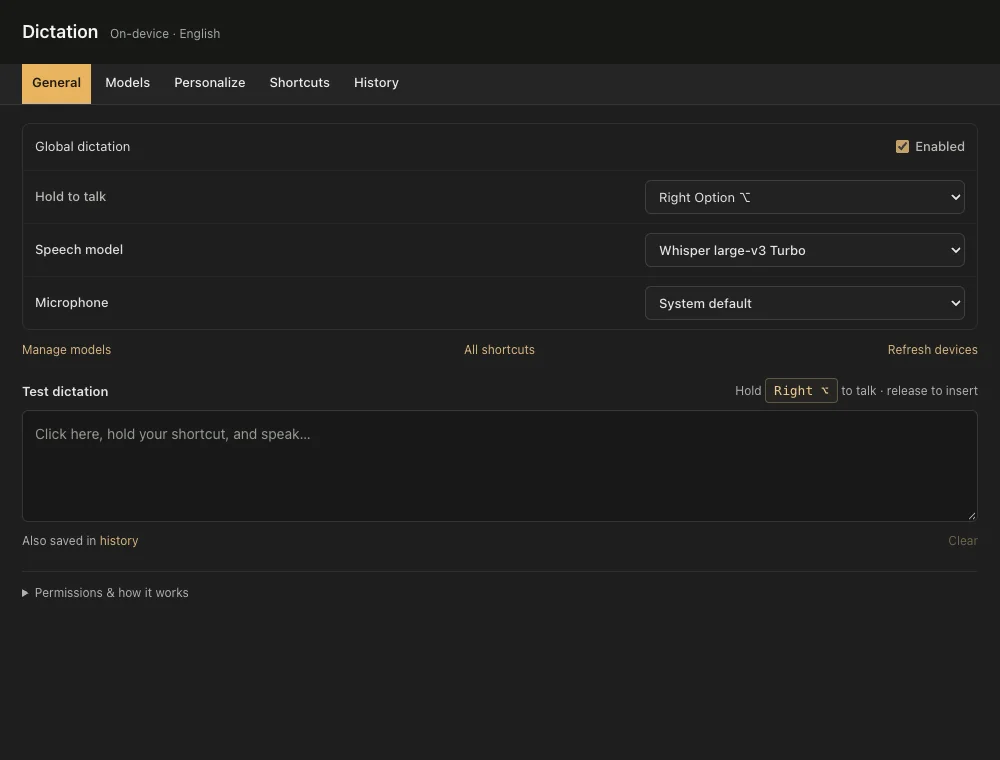
Keep what you said.
Completed dictations appear in a separate local voice history. Search and copy a transcript if insertion into the original app did not work, or revisit something you spoke earlier.
Edit without starting over.
Select text in a supported app to fix grammar, translate, shorten or rewrite it. Preview the answer before replacing the source. You can also save custom actions and assign direct shortcuts.
How writing actions work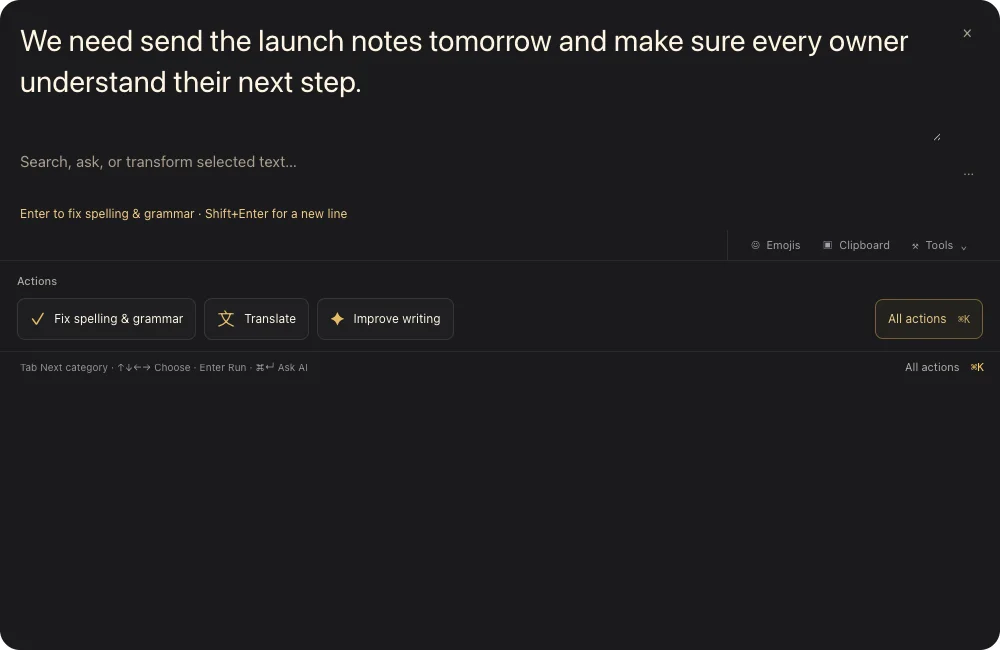
Ask, then keep going.
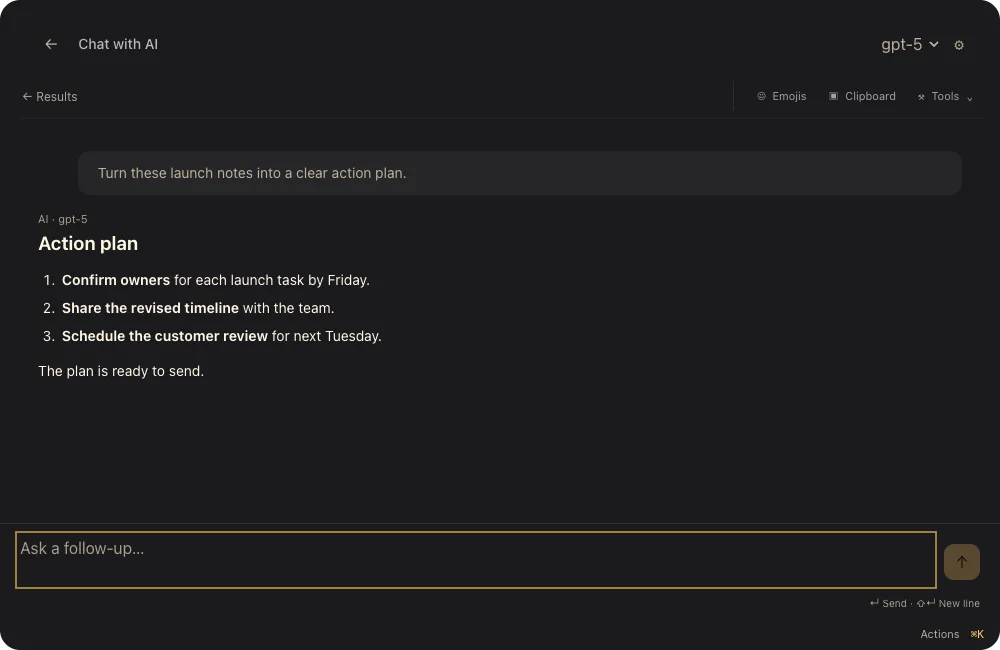
Open AI chat from the launcher to ask a question, follow up and revisit a conversation. Use your configured model; prompts and any context you choose to include go to that model’s provider unless you use a local option.
Choose where text goes.
Apple Intelligence is optional and available on compatible Macs with macOS 26 or later. You can instead configure a supported cloud provider, Ollama or a compatible endpoint. Cloud requests send the submitted text to that provider; its usage charges and policies apply.
Compare model optionsCREATE & KEEP MOVING
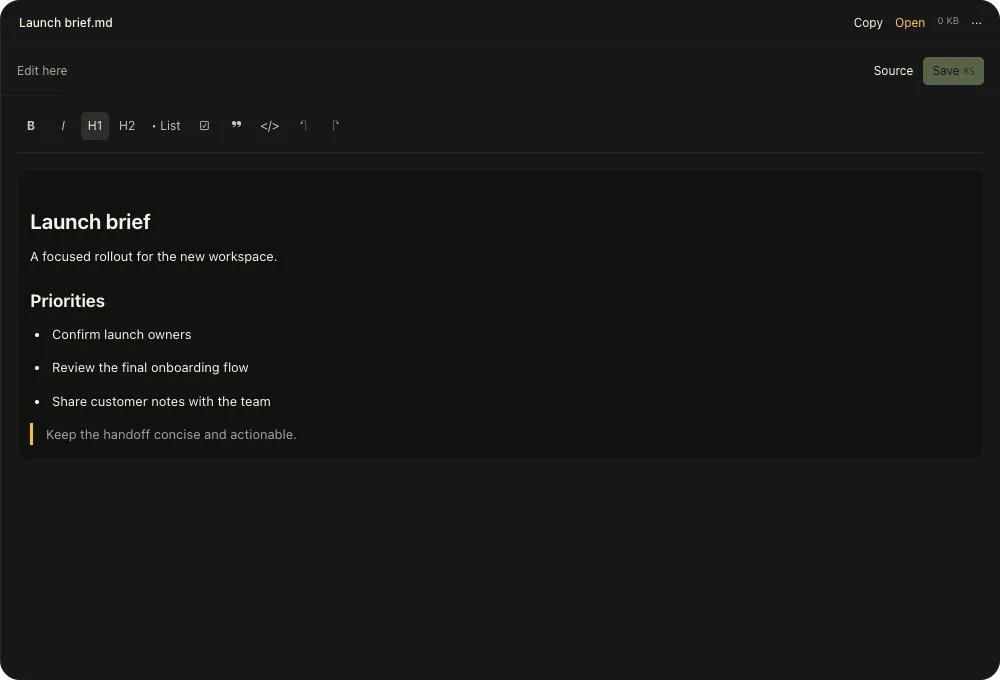
Edit right in the preview.
Open a supported text or Markdown file from search, make changes in Padhow and save them back to the file. Markdown has a rich-text editor and a source view for syntax that needs to stay intact. Unsaved changes are kept while Padhow is open.
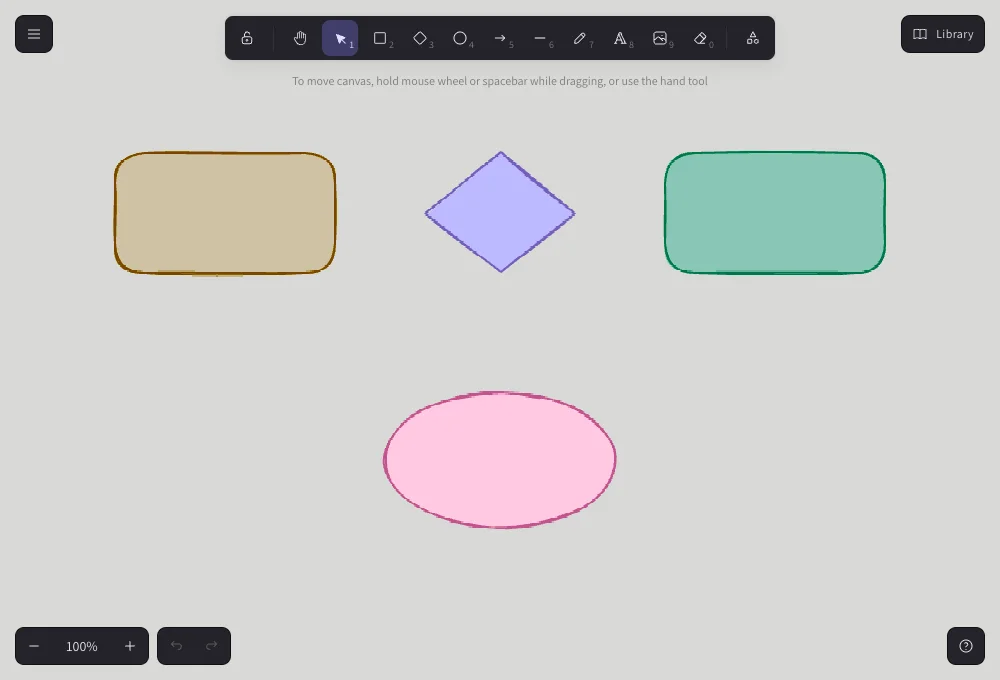
Draw without leaving the file.
Preview and edit an existing .excalidraw drawing in Padhow, then save your changes to the file. It’s a canvas for your drawings, not an automatic cloud sync.
Find what you copied.
Browse and search recent copied items without switching apps. Clipboard history stays local. Voice clipboard is separate and keeps completed dictations until you delete them.
Do the next small thing.
Preview common document and media formats, then use supported image conversion and ZIP actions from Padhow. Available conversions depend on the format and installed codecs.
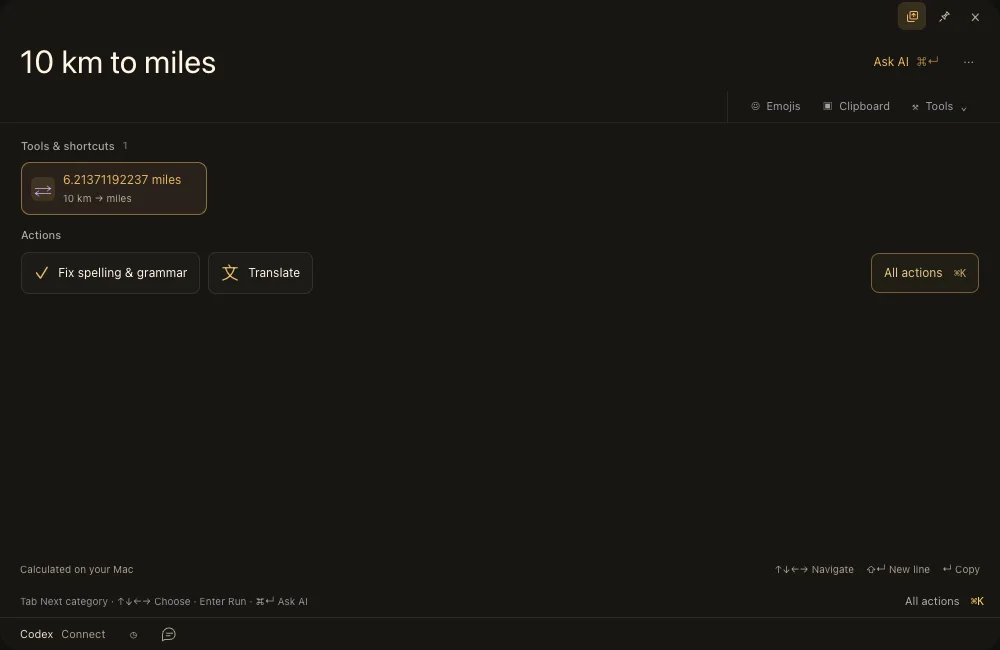
Get the answer in the launcher.
Type a calculation or unit conversion and see the result alongside your search. Copy the answer without opening a separate app. The emoji picker is also close by when words aren’t enough.
Try: 10 km to miles · 24 * 7 · emoji
Keep the little things handy.
Jot down quick notes, save snippets for repeated text and set up quicklinks to places you visit often. Use the launcher to find them again.
Stay on schedule.
Set a local alarm or focus timer, and browse a calendar without switching to a full planning app.
Keep the music close.
Play, pause and skip from a small player. Music and Spotify can provide track details; system media controls are available too. Some app-specific controls require Automation permission.
Find the next command.
Open the searchable action menu for file and app actions, save favorites or aliases, and return to recent apps, websites and questions. Local history controls are in Settings.
Make the launcher yours.
Set your shortcut, choose search folders, arrange actions and enable the extensions you use. Save snippets and quicklinks for repeated work; optional widgets keep useful information close. Customize writing actions and model choices separately.
MORE TOOLS
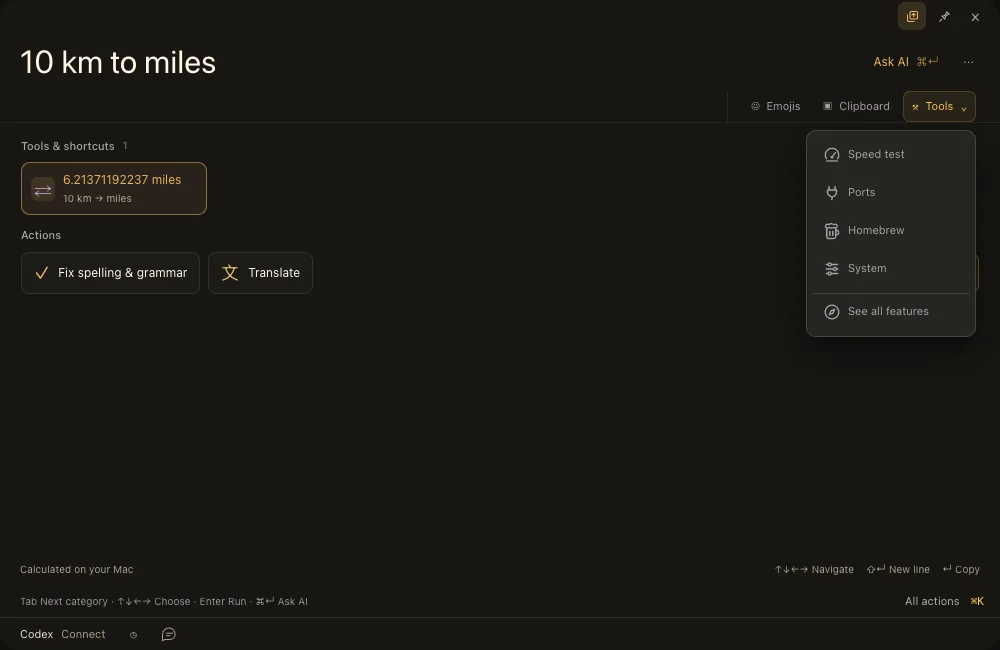
Check your connection.
Search for speed test and select the Padhow app result, or find it in Tools. The test measures download and upload against Cloudflare for about five seconds each, shows live Mbps estimates and stops when you leave. Data use varies with connection speed.
See what’s running.
Ports shows current-user listening TCP processes with their port, PID and working folder. Search and filter results; stopping an individual process requires confirmation. Homebrew lets you inspect and manage packages when Homebrew is installed.
Useful controls, close by.
Mute or unmute, keep your Mac awake for 30 minutes, sleep the display, arrange a supported window or open a macOS settings page. Window placement needs Accessibility and Automation permission.
Connect what you choose.
Optional Gmail and Google Calendar integrations need Google Desktop OAuth setup. Public sign-in verification and live-account testing are still pending; the Gmail extension does not send mail.
GOOD TO KNOW
Know what stays local.
Speech recognition, clipboard history, notes and usage statistics stay on your Mac. Cloud AI receives the text and context you submit; web previews contact websites. Accessibility-dependent features work only where macOS and the source app expose the needed fields.
¹ Apple Intelligence requires compatible hardware, macOS 26+, and its model enabled and downloaded. The current Mac download is for Apple Silicon.